

Whataburger Curbside Pickup Guide via Mobile App
Curbside pickup is the best of both worlds: the full Whataburger menu, ordered and customized from your phone, brought straight to your car — no drive-thru line, no parking and walking in. If you’ve never used it, the process is simple, but a few details (like when to tap “I’m here” and where to park) make the difference between a seamless pickup and a confusing one. This guide walks through every step of Whataburger curbside pickup via the mobile app.
The basic flow: download the Whataburger app, build your order with full customization, pay in the app, select curbside as your pickup method, drive to the restaurant, tap to announce your arrival, and wait for a crew member to bring your food out. Total hands-on time at the restaurant: a few minutes.
Key Takeaways
- Curbside pickup is ordered and paid through the Whataburger mobile app — no speaker, no line.
- Choose the curbside pickup option and your arrival time when placing the order.
- Park in the designated curbside spots and tap “I’m here” in the app on arrival.
- Full customization is available — the app shows every topping toggle.
- Always check your bag before driving off; report issues through the app or at the door.
Step 1: Set Up the App
Download the Whataburger app on iOS or Android and create an account. Add a payment method — card or mobile wallet — so checkout is one tap. Enable location services and notifications: the app uses your location to find nearby restaurants and to streamline the arrival check-in. If you’re new to the app, our app ordering guide covers setup, rewards, and offers in detail.
Signing up also enrolls you in the rewards program, so curbside orders earn points toward free food just like any other order. Check the offers tab before ordering — there may be a curbside-eligible deal waiting.
Step 2: Build Your Order
Select your restaurant, then browse the menu. The app’s customization screens are the easiest way to build complex orders: every topping, cheese, bun, and sauce is a toggle, and nothing gets misheard. Take your time — unlike the drive-thru speaker, there’s no line behind you. For inspiration, see our pro customization guide and the full menu with prices.
Step 3: Choose Curbside and Check Out
At checkout, select curbside pickup as your fulfillment method (options typically include curbside, drive-thru pickup, and dine-in/takeout). You’ll choose when you want the order prepared — “ASAP” starts the kitchen right away, while scheduled times let you order ahead for later. If you’re still at home, don’t choose ASAP; time your order so the food is fresh when you arrive.
Pay in the app to complete the order. You’ll get an order confirmation with a number — screenshot it or keep the app handy. Note that gift card acceptance for app orders can vary; if you’re planning to pay with a gift card, confirm it works for mobile orders first (see our gift card guide).
Step 4: Arrive and Check In
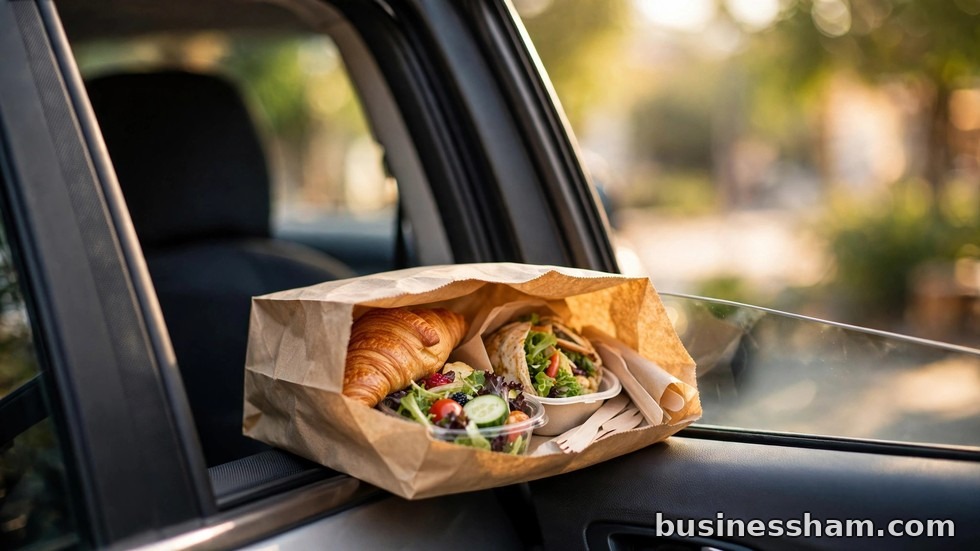
Drive to the restaurant and look for the designated curbside pickup parking spots — they’re marked with signs near the building. Park in one, then open the app and tap the “I’m here” or arrival button, entering your spot number if asked. This notifies the crew to bring your order out.
Timing matters. If you arrive much earlier than a scheduled order, the kitchen may not have started it yet — that’s fine, just check in and wait. If you arrive late, your food may have been waiting; fries suffer most from waiting, so try to arrive on time. Typical handoff takes just a few minutes after check-in.
Step 5: Verify and Go
When the crew member brings your order, do a quick check before they walk away: count the items, confirm drinks and shakes, and make sure custom items look right. It’s much easier to fix a missing item curbside than from home. Then you’re on your way — no line, no waiting at a counter.
Curbside vs. Other Pickup Methods
| Method | Best For | Watch Out For |
|---|---|---|
| Curbside | Staying in the car, bad weather, kids asleep | Must use the app; limited to participating locations |
| Drive-thru | No app, spontaneous stops | Lines at peak hours; speaker mishears complex orders |
| In-store takeout | Paying cash, no smartphone | Parking and walking in; counter waits |
| Delivery (third-party) | Not leaving home at all | Delivery and service fees add up fast |
Curbside wins for convenience without the delivery markup. For delivery fee details, see our online ordering and delivery guide.
Pro Tips for Perfect Curbside Orders
First, time ASAP orders to your drive — place the order when you’re about 10–15 minutes away so it’s fresh on arrival. Second, use scheduled ordering for planned meals; it’s the most underused app feature. Third, double-check customizations on the review screen before paying — the app makes it easy to catch a forgotten “no onion.”
Fourth, keep your phone charged and notifications on; the crew may message if there’s an issue. Fifth, in bad weather, curbside is at its best — but give the crew an extra minute or two of grace. Finally, remember rewards: every curbside dollar earns points, so there’s no reason to order as a guest.
Troubleshooting Curbside Pickup
Curbside usually runs smoothly, but here’s how to handle the hiccups. If the “I’m here” button doesn’t seem to work, make sure location services are enabled for the app and that you’re parked in a marked curbside spot — the system sometimes needs a moment to register. If several minutes pass with no sign of your food, it’s fine to call the restaurant directly or walk to the door; crews would rather hear from you than have you waiting silently.
If an item is missing or wrong, report it immediately — either to the crew member at your car or through the app’s help options. Same-visit fixes are fast; next-day complaints are harder to resolve. If your food arrives lukewarm after a long wait, mention it politely; many locations will remake items that sat too long. And if curbside spots are full, park nearby, check in anyway, and note your actual spot in any comment field or by calling.
One more tip: extreme weather and peak rushes can stretch curbside times, so build in a buffer when ordering during a Friday dinner rush or a storm. Menu prices are approximate, vary by location, and change over time — the app always shows your exact total before you pay. Nutrition figures are approximate too; check Whataburger’s official website for current nutrition data.
Frequently Asked Questions
How does Whataburger curbside pickup work?
Order and pay in the Whataburger app, select curbside pickup, drive to the restaurant, park in a marked curbside spot, tap “I’m here” in the app, and a crew member brings your food to your car.
Do I need the app for curbside pickup?
Yes — curbside ordering, payment, and arrival check-in all run through the Whataburger mobile app.
Is there an extra fee for curbside pickup?
Curbside pickup itself typically carries no extra fee beyond your food total — unlike third-party delivery, which adds service and delivery fees. Policies are approximate and can change.
Can I customize my order for curbside?
Yes — full customization is available in the app, with every topping, cheese, bun, and sauce as a toggle. It’s the most precise way to order a custom build.
What if something is missing from my curbside order?
Check your bag at the car before the crew member leaves. For issues discovered later, contact the restaurant or use the app’s help options promptly.
Final Thoughts
Curbside pickup is Whataburger’s most underrated ordering method: app-level customization precision, no drive-thru line, no delivery fees, and food handed to your window. Once you’ve done it twice, it becomes second nature — order on the way, tap on arrival, eat minutes later. Download the app, try it on your next craving, and enjoy the shortest distance between hunger and burger.
BusinessHam is an independent informational guide and is not affiliated with or endorsed by Whataburger. Trademarks and menu names belong to their respective owners. Prices and availability vary by location — check your local Whataburger before ordering.